
Main guide: Best Stable Camera for Horses: How to Choose One (Night Vision, Placement, Connection)
Most stable cameras can do more than stream to their own app. Behind the app there is usually an RTSP link: an address that lets other software, such as a video recorder, a viewing app on your computer, or a monitoring system like HCS, open the camera's live picture directly.
This guide shows how to find that link for the most common camera brands, how to test it in two minutes, and what to check when it doesn't work. If you are still choosing a camera, start with our guide to choosing a stable camera.
What an RTSP link looks like
An RTSP link has the same parts on almost every camera:
rtsp://username:password@192.168.1.20:554/path
- username:password: the login you use for the camera (often the same as in its app or recorder)
- 192.168.1.20: the camera's address on your stable's network
- 554: the usual RTSP port
- /path: the part that differs between brands, and the one people most often get wrong
Before you start: four things to have ready
- The camera's IP address. Look in the camera's app (device or network information), in your recorder (NVR) under the camera list, or in your router's list of connected devices.
- The camera's username and password. Hikvision and Dahua cameras usually use
adminplus the password set when the camera was first activated. - RTSP switched on. Many cameras have it on by default. Some, including many Reolink models, have an RTSP switch in the network or port settings that must be turned on first.
- Main stream or sub stream. Most cameras offer two: a main stream in full quality, and a smaller sub stream that uses less bandwidth. Monitoring usually works well on either; check what your software asks for.
The link for each brand
These are the formats most models use. Firmware and older models sometimes differ, so if a link doesn't work, check the model's manual or the brand's support pages (list of RTSP formats).
In each box the first line is the main stream (full quality) and the second the sub stream (smaller).
Hikvision (and many Hikvision-made brands)
rtsp://user:pass@IP:554/Streaming/Channels/101
rtsp://user:pass@IP:554/Streaming/Channels/102
Dahua (and many Dahua-made brands)
rtsp://user:pass@IP:554/cam/realmonitor?channel=1&subtype=0
rtsp://user:pass@IP:554/cam/realmonitor?channel=1&subtype=1
Reolink
rtsp://user:pass@IP:554/h264Preview_01_main
rtsp://user:pass@IP:554/h264Preview_01_sub
A few details that catch people out:
- Cameras connected through a recorder (NVR). Use the recorder's IP address and pick the channel. On Hikvision, channel 3 is
/Streaming/Channels/301(main) or302(sub). On Dahua, changechannel=1tochannel=3. - Reolink cameras recording in H.265 may use
h265Preview_01_maininstead. - Older Hikvision recorders sometimes use
/h264/ch1/main/av_stream.
Test the link in two minutes with VLC
Before you give the link to any software, check it works:
- Install the free VLC media player on a computer connected to the stable's network.
- Open Media → Open Network Stream (on a Mac: File → Open Network).
- Paste the full RTSP link and press Play.
If you see the stall, the link is right. If VLC asks for a login, or shows nothing, go through the checks below.
When the link doesn't work
| What you see | Most likely cause | What to do |
|---|---|---|
| "Unauthorized" or a login prompt | Wrong username or password | Log in to the camera's own app or web page with the same details to confirm them |
| Nothing at all, or "connection refused" | Wrong IP address, RTSP switched off, or a different port | Check the IP again; turn RTSP on; confirm the RTSP port in the camera's network settings |
| It worked yesterday, not today | The camera's IP address changed | Give the camera a fixed address in the router (a "DHCP reservation") |
| Login fails although the password is right | The password contains @, #, : or / |
Change the camera password to letters and numbers, or replace each symbol with its URL code (@ is %40) |
| Picture opens but freezes or breaks up | Weak Wi-Fi, or too many viewers on one camera | Use the sub stream, move to a wired (PoE) connection, or close other apps watching the camera |
| Software says the video can't be read | The camera streams H.265 and the software expects H.264 | Switch the camera's video encoding to H.264 |
Keep your cameras private
An RTSP link with a password in it is a key to your stable. A few rules keep it safe:
- Don't open port 554 on your router to reach the camera from outside. Cameras exposed to the internet are a common way in for attackers.
- Change default passwords, and use a different password for each camera or recorder.
- Keep the camera's firmware up to date.
Connecting your camera to HCS
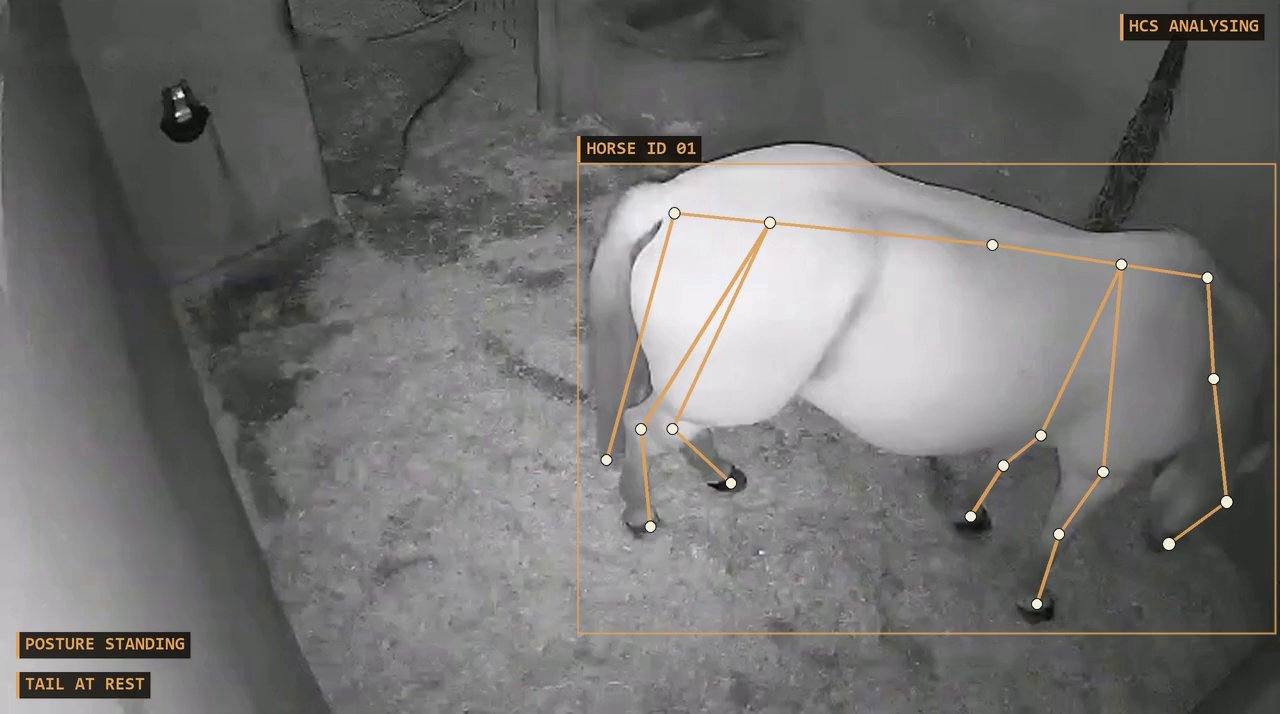
Once you have a working RTSP link, that is all HCS needs. Your cameras stay on your stable's private network: a small link box at the stable connects them to HCS through an encrypted tunnel, so nothing at the stable is opened to the internet. HCS then watches the camera through the night, follows your horse's posture and movement, and alerts you, with the clip, when something needs a look.
If your cameras don't offer RTSP (many consumer cloud cameras don't), we keep the ones that do and replace the rest. Tell us what you have and we'll help you work it out.